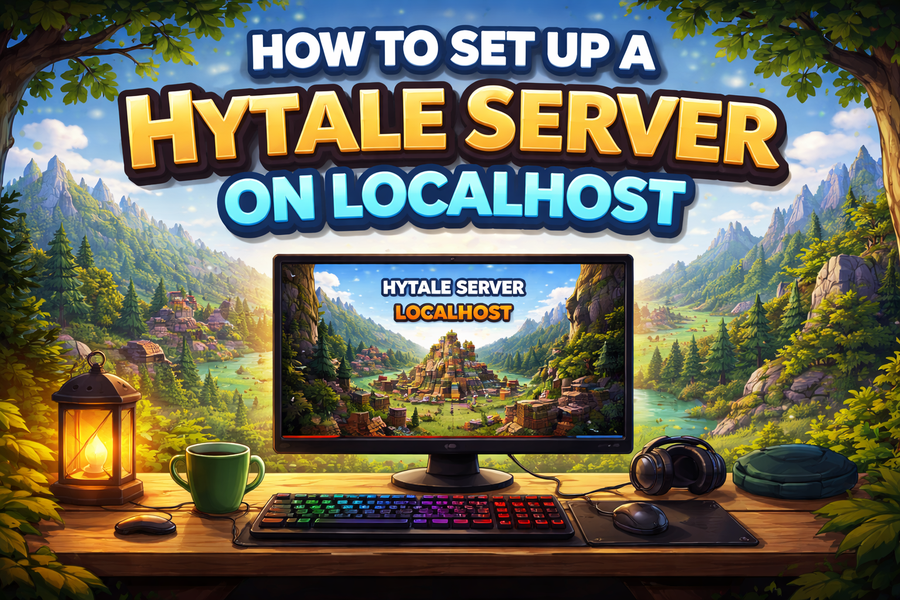
How to Set Up a Hytale Server on Localhost: Step-by-Step Guide
In Hytale, that choice is not just where you explore, but how you share your world. Hosting your own server on localhost allows you to create a private space for testing, building, and exploring before ever opening it to the wider world.
This guide is written for explorers, builders, and server owners alike. Whether you are new to hosting or simply curious about how Hytale servers work behind the scenes, consider this your field journal.
Contents
-
What Is a Local Hytale Server?
-
How Hytale Local Servers Work
-
Step-by-Step Guide: Set Up Your Local Hytale Server
-
Step 1: Download the Server Files
-
Step 2: Extract and Organize the Files
-
Step 3: Install Required Dependencies
-
Step 4: Configure Your Server
-
Step 5: Create a run.bat File
-
Step 6: Run the Server
-
Step 7: Connect to Your Local Server
-
Step 8: Optional Adjust RAM and Settings
-
Step 9: Optional Share With Friends
-
-
Additional Resources
-
The Journey Ahead
What Is a Local Hytale Server?
A local Hytale server is a multiplayer environment running directly on your computer. Unlike public servers, a localhost server is private by default, accessible only from your own machine unless you configure it otherwise.
Running a server locally gives you full control over settings, world generation, mods, and gameplay rules. It is the ideal space for experimentation, learning, and testing your creations before sharing them with others.
How Hytale Local Servers Work
A local server is hosted on your computer. From your perspective as a player, connecting is simple: you launch the server, start Hytale, and connect using your own IP address, usually 127.0.0.1.
As the server owner, you control every aspect of the world. You can adjust game rules, player limits, spawn points, mods, and more. Some hosts choose to remain entirely private, while others eventually open their server to friends or the public.
This control is what makes hosting unique. Your server can be a sandbox, a challenge, or a creative playground, whatever you imagine.
Step-by-Step Guide: Set Up Your Local Hytale Server
Step 1: Download the Server Files
Visit the official Hytale website to download the server files. Make sure you choose the correct version for your operating system. Save the downloaded package in a dedicated folder.
Step 2: Extract and Organize the Files
Use a tool like WinRAR or 7-Zip to extract the server files. Ensure all files are in the same folder. You should see files like serverconfig.json, folders for worlds, and scripts for running the server.
Step 3: Install Required Dependencies
Hytale servers require Java to run. Download and install the latest version from the official Java website.
Step 4: Configure Your Server
Open serverconfig.json in a text editor. Change important settings to your preference:
-
Port: Default is 25565
-
Max Players: Set the number of players allowed
-
World Name / Seed: Customize your world
-
Game Rules: Adjust difficulty, PvP, or other gameplay options
Save the file after editing.
Step 5: Create a run.bat File
A .bat file allows you to launch the server quickly without manually typing commands every time. Open Notepad, add the necessary server launch command, and save it as run.bat in the same folder as your server files.
Step 6: Run the Server
Double click run.bat to start your server. The console window will display startup messages. When you see "Server started on port 25565," your server is running on localhost.
Step 7: Connect to Your Local Server
Open Hytale and go to Multiplayer. Add a server with the IP 127.0.0.1 and the port you set in serverconfig.json. Click Join to enter your private world.
Step 8: Optional Adjust RAM and Settings
You can edit run.bat to increase RAM allocation. Edit serverconfig.json anytime to tweak rules, world settings, or max players.
Step 9: Optional Share With Friends
To allow friends to join, set up port forwarding on your router. Use your public IP address instead of 127.0.0.1. Once your server is public, you can even list it on Hytale Server List so others can find and join your world. For testing, localhost is sufficient and safe.
Additional Resources
The Journey Ahead
Local Hytale servers are the starting point for a lifetime of multiplayer adventures. By experimenting on localhost, you learn the rules, explore possibilities, and prepare for the wider Hytale universe.
Whether you are hosting your first server or refining your world before sharing it, the adventure is only beginning. Your server is your canvas, and every block you place tells a story.